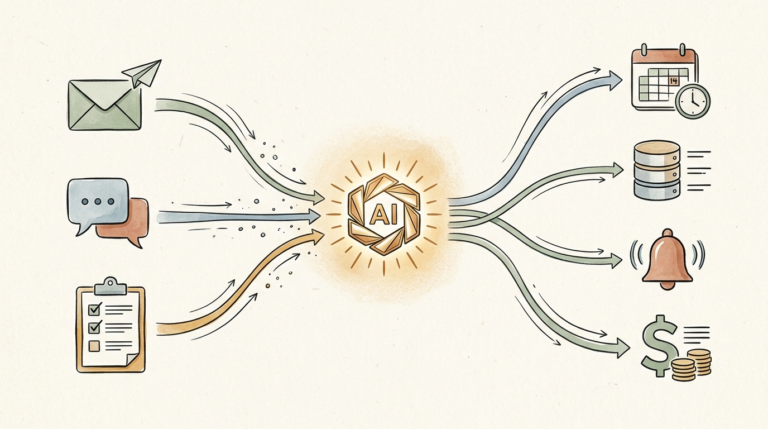
How to Use ChatGPT for Small Business: Step-by-Step Guide for 2026
Last Updated: May 2026
If you’re trying to figure out how to use ChatGPT for small business tasks without spending three weekends learning to code, you’re in the right place. Two years ago, ChatGPT was a curiosity. A neat trick. Something tech enthusiasts tweeted about while the rest of us got actual work done.
Today? Over 1.2 billion people use ChatGPT every month, and roughly half of small business owners say they use it weekly for real work tasks. If you’re not using it yet, you’re not behind, but you’re getting close.
Here’s the thing nobody tells you when they hype ChatGPT: it’s not magic, and it’s not actually that hard to use. What it IS is the most flexible business tool I’ve ever encountered. I use it daily for emails, blog posts, customer responses, brainstorming, contract review, even meal planning when my brain is fried at 6pm.
The problem is most guides on how to use ChatGPT for small business are written either for developers (who immediately start talking about APIs and Python) or for hype merchants (who promise it’ll “10x your business” without showing you anything practical). Neither helps you, the actual small business owner trying to figure out where to start.
This guide is different. By the end of this article, you’ll know exactly how to use ChatGPT for small business work, the 15 most valuable use cases, and the prompts that actually work. No coding. No fluff. Just step-by-step instructions you can follow this afternoon and start saving time tomorrow.
Let’s dive in.
What Is ChatGPT (And Why Small Businesses Should Care)
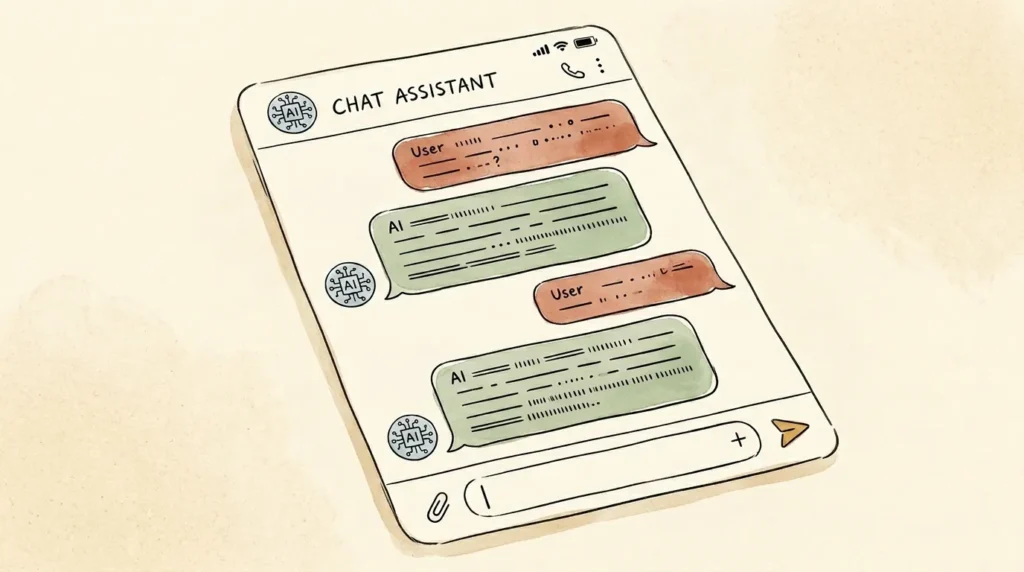
Plain-English definition: ChatGPT is an AI tool that reads and writes text the way a human does. You type something into a text box, and it responds in fluent English. Ask it to draft an email, summarize a long document, brainstorm headlines, or explain a contract clause, and it does it. That’s the whole interface. There’s no learning curve beyond “can you type a sentence?”
ChatGPT is built by OpenAI, the AI research company. The reason that matters: OpenAI is the most well-resourced AI company in the world, which means ChatGPT gets better roughly every quarter. The version available today is meaningfully smarter than the version available six months ago, and that compounding improvement is part of why so many small business owners are integrating it into daily workflows.
The Different ChatGPT Models
You’ll occasionally see references to ChatGPT 3.5, GPT-4, GPT-4o, and various newer models. The short version: the free tier gives you access to a solid model that handles most everyday tasks, and the paid tier gives you the latest and most capable models. For nearly all small business work, the difference between “good” and “best” is real but rarely the deal-breaker. Start with what’s available on the free tier and upgrade only when you hit specific limitations.
What ChatGPT Can and Can’t Do (Honestly)
Excellent at: drafting and rewriting text, summarizing long documents, brainstorming, classification, translation, basic analysis, generating creative options, and explaining concepts. Bad at: making real-time judgment calls about your specific business, replacing human emotional intelligence in client relationships, and being trusted blindly with facts (it can confidently make things up). The mental model that works: ChatGPT is a fast, cheap, slightly overconfident intern. You wouldn’t hand the business over to an intern, but you’d absolutely have them draft emails.
Free vs. Paid ChatGPT: Which One Do You Actually Need?
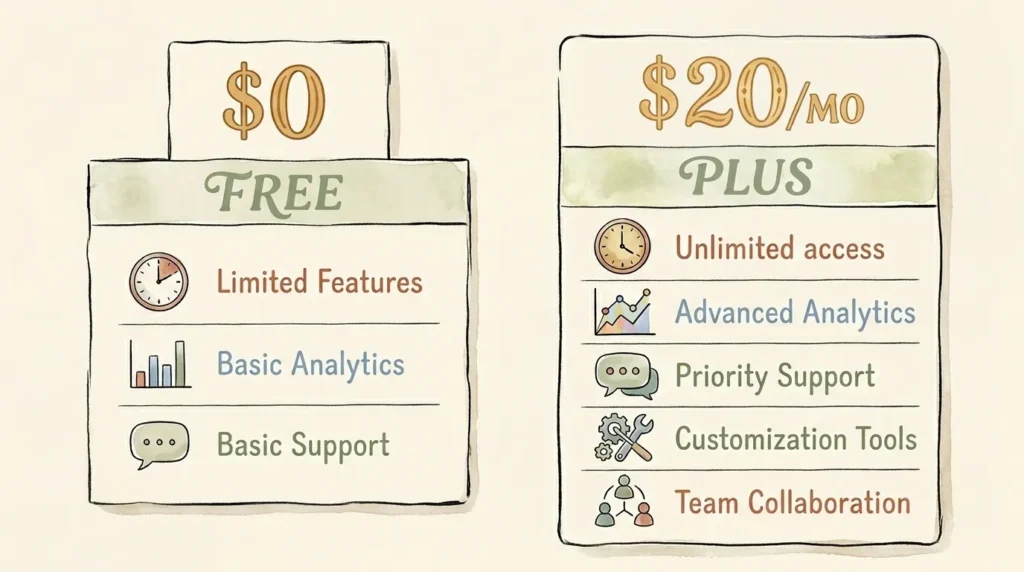
Before learning how to use ChatGPT for small business work, you need to pick a tier. There are four: Free, Plus, Team, and Enterprise. Most small business owners only need to consider the first two.
ChatGPT Free
What you get: access to a capable model, basic image generation, file uploads with limits, and the standard chat interface. Limitations: usage caps that reset every few hours, slower response times during peak demand, and limited access to the most advanced models. For most solopreneurs and small business owners just starting out, the free tier is genuinely usable for 60 to 90 days before you need to upgrade.
ChatGPT Plus ($20/month)
What’s included: priority access to the most capable models, higher usage caps, faster responses, file uploads, image generation, voice mode, custom GPTs, and the Code Interpreter feature. For $20/month, this is one of the highest-ROI tools in any small business stack. If you’re using ChatGPT daily, the upgrade pays for itself in the first week of saved time.
ChatGPT Team ($25 to $30 per user/month)
Adds: shared workspaces, admin controls, stricter data privacy (your conversations are not used to train future models by default), and team-level custom GPTs. Worth it once you have 2+ team members using ChatGPT regularly. For solo operators, Plus is plenty.
ChatGPT Enterprise
Custom pricing, designed for large companies. Honestly, if you’re reading this article, you don’t need Enterprise. Skip it.
Quick Comparison
- Free: $0/month. Good for testing and light use.
- Plus: $20/month. The right choice for nearly every small business owner.
- Team: $25 to $30/user/month. Worth it for multi-person teams.
- Enterprise: Custom pricing. Skip it.
My Honest Recommendation
Start with the free tier. Use it daily for two weeks. If you find yourself hitting usage caps, waiting for slow responses, or wishing you had file uploads, upgrade to Plus. Most small business owners hit that point within 30 days. The $20/month is one of the easier business expenses to justify because the time savings are immediate and visible.
Try ChatGPT
How to Use ChatGPT for Small Business: Step-by-Step Setup
Setup takes about 15 minutes. Here are the steps, in order.
Step 1: Create Your OpenAI Account
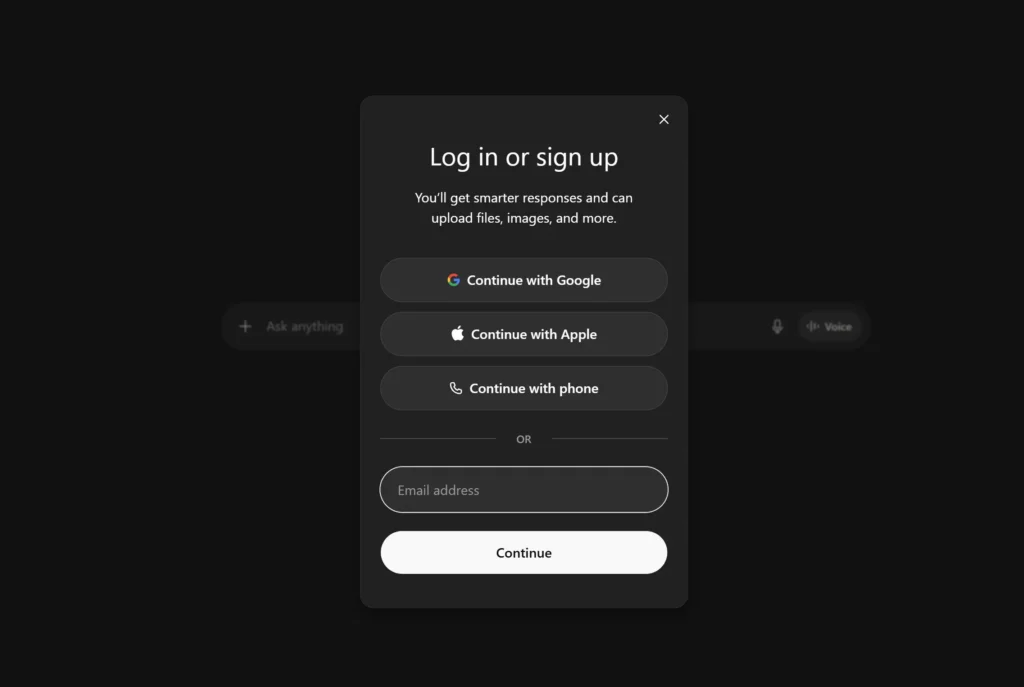
Go to chatgpt.com and click “Sign up.” You can use your email or sign in with Google, Microsoft, or Apple. Verify your email address, set a password, and you’re in. The whole process takes about 90 seconds.
Step 2: Choose Free or Plus
On signup, you’ll be on the free tier by default. Don’t upgrade yet. Use it for two weeks first. The decision to upgrade should come from running into a real limitation, not from FOMO.
Step 3: Set Up Custom Instructions
This is the step most people skip, and skipping it is the single biggest reason their ChatGPT output feels generic. Click your profile icon, go to Settings, and open the Personalization tab. You’ll see several sections worth configuring.
Base style and tone. This sets the default voice ChatGPT uses with you. Most small business owners get good results leaving this on Default, but if you want output that consistently matches your communication style, change it here. The Characteristics options below it (Warm, Enthusiastic, Headers & Lists, Emoji) let you fine-tune further. For business writing, I usually leave Headers & Lists on Default and turn Emoji off, but it depends on your brand.
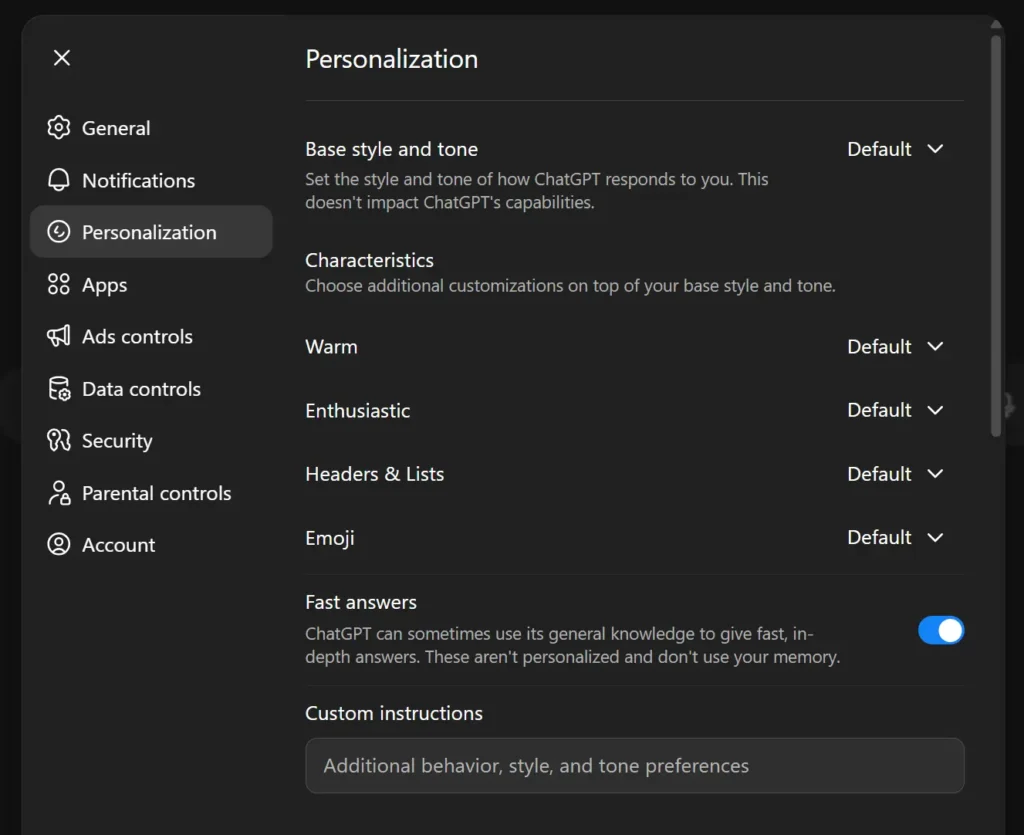
Custom instructions. Below the Characteristics section, you’ll find a single Custom instructions field labeled “Additional behavior, style, and tone preferences.” This is where you give ChatGPT permanent guidance about how you want it to respond. Paste in something like:
Default to clear, concise responses. Skip unnecessary preamble. When drafting client-facing content, match my brand voice. When I ask a question, give me your best answer first, then explain. Avoid em dashes; use commas, semicolons, or periods instead.The “About you” section. Scroll down past Custom instructions and you’ll find About you, which is genuinely the most important part of this whole setup. Three fields:
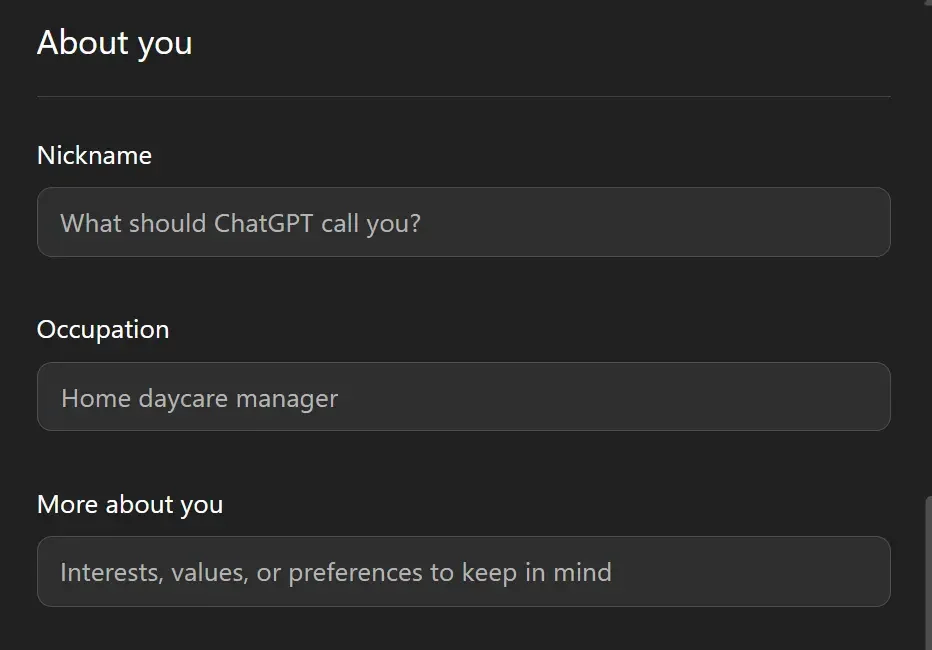
- Nickname: What ChatGPT should call you. Optional, but useful for a more personal feel.
- Occupation: Your role or business type. Be specific. “Freelance UX designer serving SaaS clients” beats “designer.”
- More about you: Your interests, values, and any context that helps ChatGPT understand who you are and what you do. This is the box that does the heaviest lifting on personalization. Paste in something like:
I run a [type of business] with [team size]. My customers are [target audience]. My brand voice is [3-5 adjectives like "warm, direct, slightly informal"]. I work mostly on [main types of tasks: client emails, blog posts, proposals, etc.]. Avoid generic AI-sounding language. Match my voice when drafting anything client-facing.Memory settings. At the bottom of the About you section, you’ll see Memory with two toggles: Reference saved memories (let ChatGPT save and use details across conversations) and Reference chat history (let it pull from recent conversations). For most small business owners, I recommend turning both on. ChatGPT gets noticeably more useful when it remembers your business context across sessions. Turn them off only if you’re working with sensitive client data and want a clean slate each time.
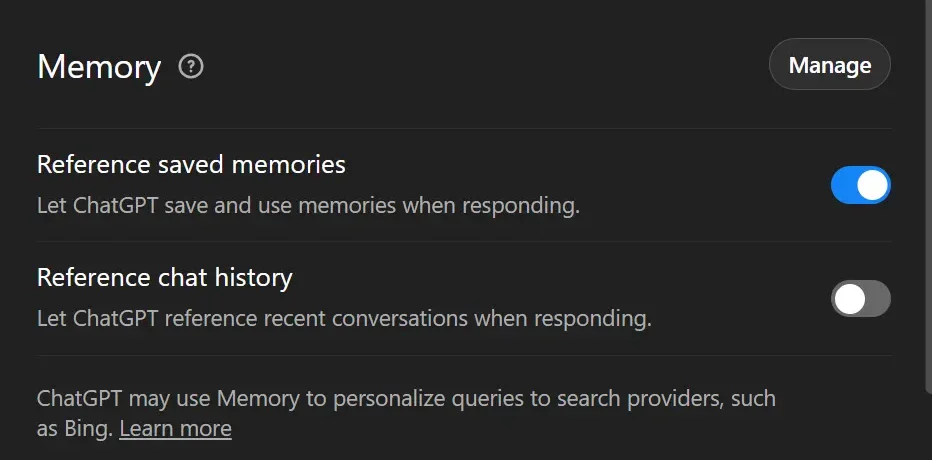
Together, the Personalization settings, Custom instructions field, and About you section apply to every conversation automatically. Setting them up well, once, makes every future interaction with ChatGPT feel like working with someone who actually knows your business.
Step 4: Connect Your Data
On the Plus tier, you can upload documents, spreadsheets, PDFs, and images directly into a conversation. This is genuinely transformative for small business work. Drop a 50-page contract in and ask for a summary. Upload a CSV of customer data and ask for trends. Paste in your last 10 client emails and ask ChatGPT to identify your voice patterns.
Step 6: Set Up a Workspace Structure
Create separate conversations for different ongoing tasks: one for client emails, one for content drafts, one for brainstorming. Use the conversation titles meaningfully. ChatGPT keeps your full chat history, which is more valuable than people realize, but only if you can find what you wrote three weeks ago.
Step 7: Get the App
Download the ChatGPT mobile app on iOS or Android. The voice mode is genuinely useful for hands-free brainstorming during walks or commutes. The app syncs with the desktop version, so anything you start on mobile, you can continue on desktop.
Common Setup Mistakes to Avoid
- Skipping custom instructions (the #1 reason output feels generic).
- Trying every feature on day one instead of mastering basic chat first.
- Upgrading to Plus before testing the free tier.
- Pasting confidential client data without checking your privacy settings.
How to Write Prompts That Actually Work (The CTRF Framework)
The single biggest factor in how to use ChatGPT for small business effectively isn’t the model, the tier, or the integrations. It’s prompt quality. The same task can produce garbage or gold depending on how you ask. Here’s the framework I use.
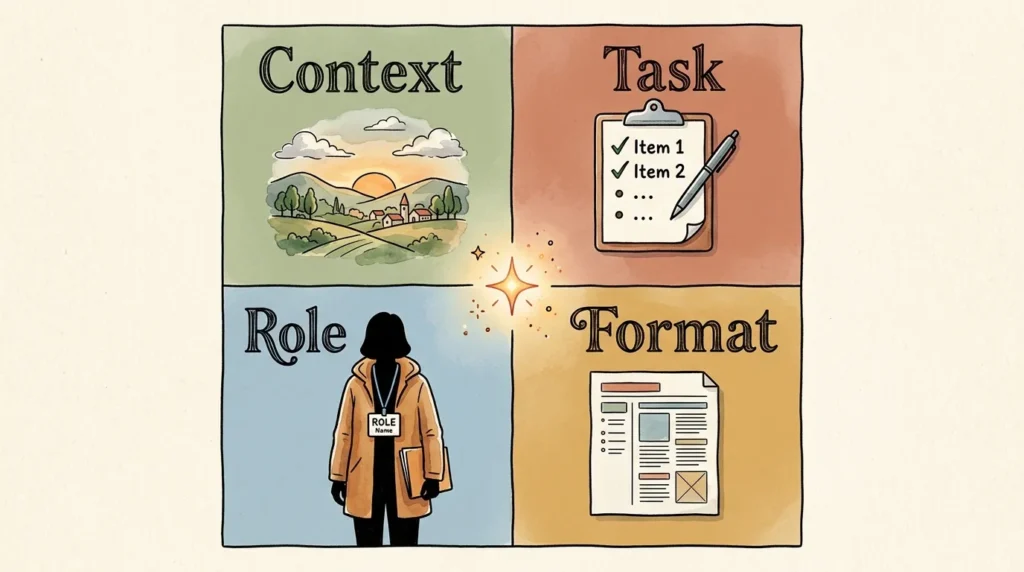
The CTRF Framework: Context, Task, Role, Format
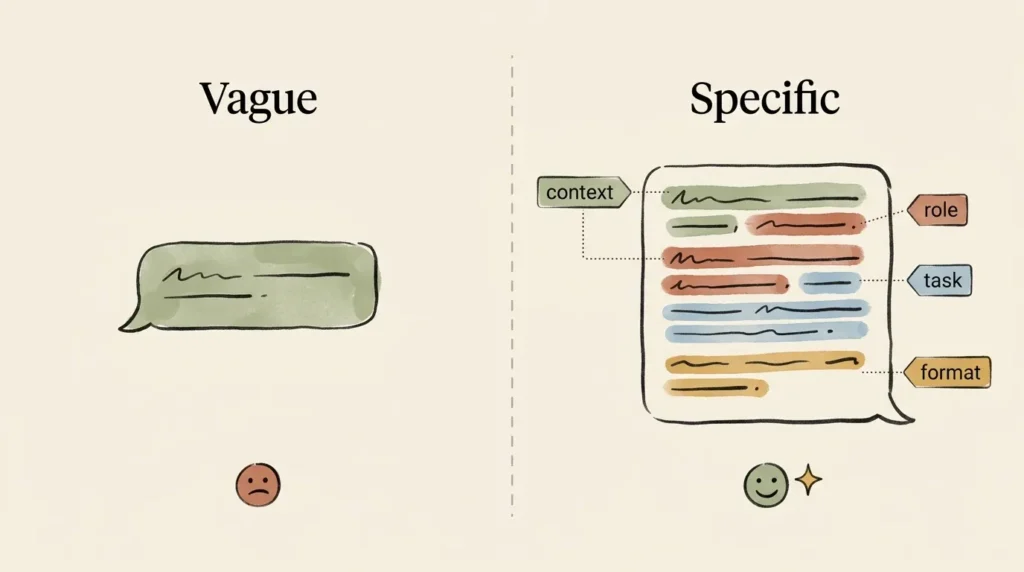
Every effective prompt has four parts. Context (what’s the situation?), Task (what specifically do you want?), Role (who should ChatGPT be?), and Format (how should the output look?). Miss any one of these and the output suffers.
Bad Prompt vs. Great Prompt
Bad:
Write an email to a client.
Great:
You’re an experienced freelance designer responding to a long-time client. Context: They missed our agreed deadline for design feedback by 5 days, which has pushed the project off track. I want to flag the issue without damaging the relationship. Task: Draft a friendly but direct email, 150 words, that acknowledges they’ve been busy, restates the original deadline, proposes a revised timeline, and asks them to confirm by Friday. Format: Just the email body. No subject line. Warm and casual tone, signed “Sarah.”
The first prompt produces something you’ll have to rewrite from scratch. The second produces a publishable email on the first try. Same task. Different planet of output quality.
The “Give It a Role” Trick
Starting your prompt with “You’re an experienced [role]” dramatically improves output quality, because it tells ChatGPT what kind of expertise to draw from. “You’re an experienced bookkeeper.” “You’re a senior copywriter for B2B SaaS.” “You’re a small business marketing strategist.” Pick the role that matches the task. The output gets noticeably sharper.
Iterate When ChatGPT Misses
Your first response is rarely perfect. The skill of using ChatGPT well is the iteration loop: get a draft, refine with follow-up requests (“Make it shorter,” “More casual,” “Less salesy,” “Remove the bullet points”). Most people give up after the first mediocre response. The third or fourth iteration is usually where it lands.
5 Plug-and-Play Prompt Templates
1. EMAIL DRAFT: “You’re my email assistant. I write in a [tone description]. Here’s the email I received: [paste]. Here’s what I want to say: [one-line note]. Draft a reply in my voice, [length].”
2. SUMMARY: “Summarize this [document/transcript/email thread] in 5 bullet points, then list every action item with the person responsible.”
3. REWRITE: “Rewrite the text below to be [more concise / friendlier / more formal / clearer for a non-technical audience]. Keep the meaning identical.”
4. BRAINSTORM: “Give me 10 different [headlines/ideas/angles] for [topic]. Vary the approaches: some how-to, some curiosity-driven, some contrarian.”
5. SKEPTIC: “Act as a skeptical [customer/investor/critic]. Read this [proposal/pitch/copy] and tell me every objection, hesitation, or weakness you’d have.”
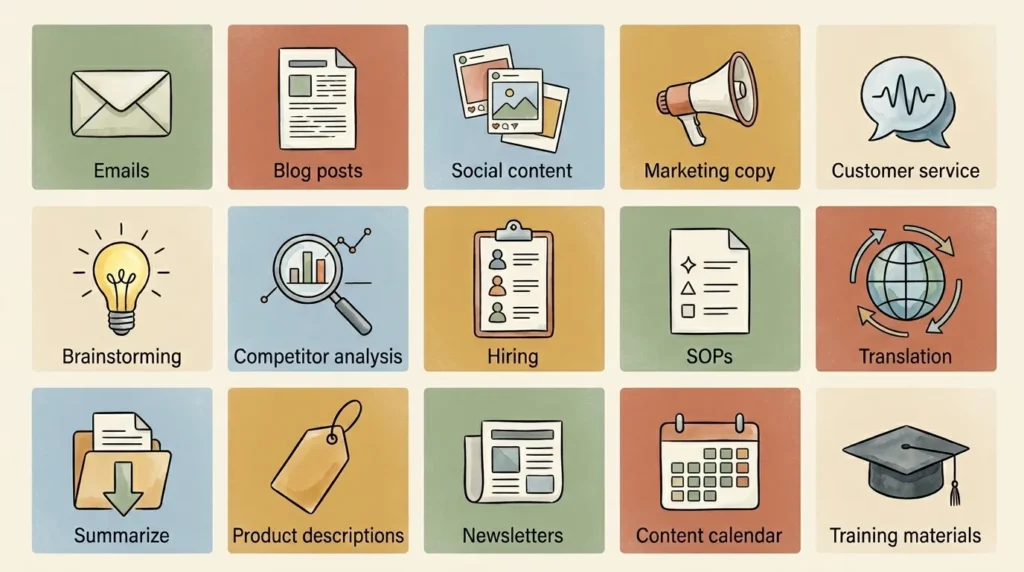
15 Ways to Use ChatGPT for Small Business (With Real Prompts)
Here’s where most articles on how to use ChatGPT for small business get vague. Not this one. Each of the 15 use cases below includes a real, copyable prompt you can paste into ChatGPT today.
1. Writing Professional Emails
Use ChatGPT for sales follow-ups, difficult client conversations, vendor negotiations, and anything else where the right tone matters more than speed. Time saved: 30 to 60 seconds per email vs. 5 to 10 minutes drafting from scratch.
“You’re writing on my behalf. I run [your business]. I need to email a client who [situation]. The tone should be [warm/firm/apologetic/enthusiastic]. Goal: [what you want them to do]. Write a 150-word email I can review and send.”
2. Drafting Blog Posts and Articles
Use ChatGPT for outlines, first drafts, and editing. Don’t use it to publish unedited content. The first draft is usually 80% there; the last 20% is where your voice lives.
“Outline a 1,500-word blog post titled [title]. Include 5 H2 sections with 2-3 sub-points each. Audience: [who you’re writing for]. Goal: [what readers should learn or do].”
3. Creating Social Media Content
Generate platform-specific posts from a single source piece. Repurposing is the killer use case here.
“Turn the blog post below into 5 social posts: 1 LinkedIn (longer, professional), 2 Twitter/X (short, punchy), 1 Instagram (warm, casual), 1 Pinterest pin description (keyword-rich). [paste blog post]”
4. Generating Marketing Copy
Headlines, ad copy, landing page copy, product descriptions. ChatGPT can generate 10 variations in 30 seconds, which is gold for testing.
“Give me 15 headline options for a landing page selling [product/service] to [audience]. Vary the angles: some benefit-led, some curiosity-driven, some problem-aware.”
5. Customer Service Responses
Build a library of templates for common questions. Edit and personalize before sending.
“Draft a friendly, helpful response to this customer email. Acknowledge their concern, provide a clear answer, and offer a next step. [paste email]”
6. Brainstorming Business Ideas
ChatGPT is a tireless brainstorming partner. Ask it to generate 20 options, then pick the 2 worth pursuing.
“I run [business]. Brainstorm 15 new product or service ideas I could offer my existing customers, ranked by how easy they’d be to launch in the next 90 days.”
7. Analyzing Competitors
Drop a competitor’s URL in and ask for a positioning analysis. What used to take a half-day of research is now an hour of structured prompting.
“Analyze this competitor’s website. Identify their target customer, main offers, pricing strategy, and positioning. Then list 3 gaps or weaknesses I could exploit. [paste URL or copy]”
8. Writing Job Descriptions and Hiring
Job postings, interview questions, and screening rubrics. Hiring is one of the highest-stakes things small business owners do, and writing good materials is hard. ChatGPT helps with the drafting, you handle the judgment.
“Write a job description for [role] at a [type of] small business. Include: a 2-paragraph intro, 5 key responsibilities, 5 must-have qualifications, and 3 nice-to-haves. Tone: [your brand voice].”
9. Creating SOPs and Documentation
Standard operating procedures are the kind of work that never gets done because it never feels urgent. ChatGPT makes it 10x faster.
“I need an SOP for [process]. Here’s how I currently do it: [rough description]. Write it as a clear step-by-step document a new team member could follow without supervision.”
10. Translating Content
ChatGPT translates between most major languages with surprisingly good cultural and contextual nuance. Useful for serving multilingual customers or expanding to new markets.
“Translate the following from English to [target language]. Maintain the warm, casual tone. If any phrase doesn’t translate naturally, give me 2 alternatives with brief explanations.”
11. Summarizing Long Documents
Contracts, industry reports, meeting transcripts, research papers. Drop them in and get the gist in seconds.
“Summarize the document below in 3 sections: 1) Key findings (5 bullets), 2) Action items I should take (3-5 items), 3) Risks or red flags I should investigate further. [paste document]”
12. Generating Product Descriptions
Ecommerce shops can save dozens of hours by batching product descriptions through ChatGPT. The output is consistently good if you give it brand voice context.
“Write a 100-word product description for [product]. Include: key features, who it’s for, the main benefit. Brand voice: [3-5 adjectives]. End with a soft call to action.”
13. Writing Newsletters
Either entire newsletter issues from rough notes, or specific sections that always stump you (intros, sign-offs, CTA paragraphs).
“I’m writing my weekly newsletter. Here are my notes: [paste]. Write a 400-word newsletter in [your tone]. Open with a story or hook, deliver the main idea, end with a clear takeaway.”
14. Planning Content Calendars
Generate a month of topic ideas in 5 minutes.
“I run [business]. Generate a 30-day content calendar for [platform]. Mix educational, promotional, and behind-the-scenes content. Format: date, content type, topic, brief description.”
15. Creating Training Materials
Onboarding documents, how-to guides, internal training. The kind of work that always falls to the bottom of the list.
“I need a new-employee onboarding guide for [role]. Cover: company overview, role expectations, key tools they’ll use, first-week priorities, and who to ask for help. Length: 800 to 1,000 words.”
How to Train ChatGPT on Your Brand Voice
Default ChatGPT writing sounds generic because the default prompts are generic. The fix takes about 30 minutes once and pays off forever.
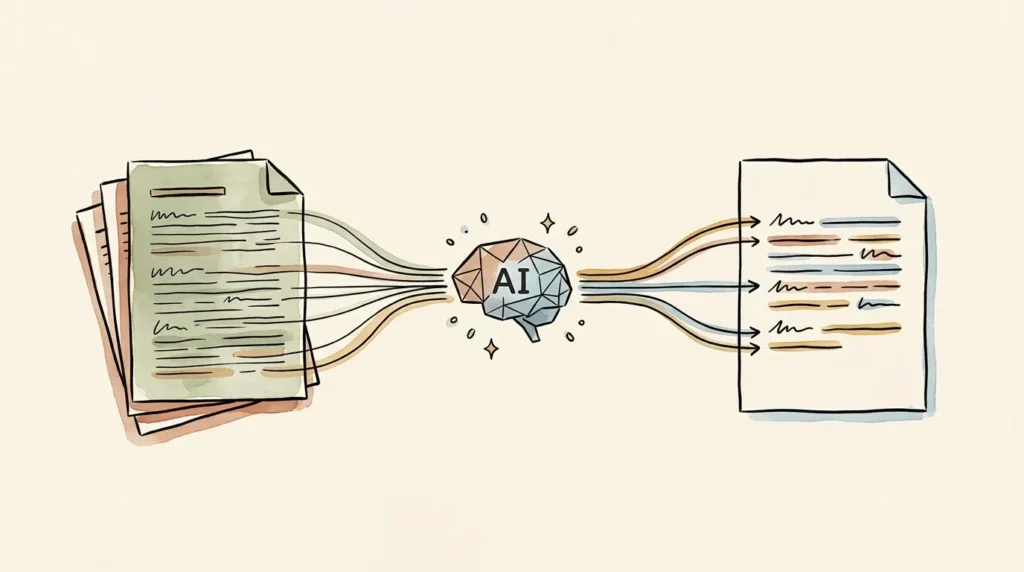
The Voice Profile Prompt
Paste 3 to 5 samples of your best past writing into a single ChatGPT conversation and say:
“Here are samples of my writing voice. Study them carefully. Identify the specific patterns: tone, sentence length, word choice, punctuation habits, common phrases, what I avoid. Then summarize my voice in a single paragraph I can paste into future prompts.”
Save the resulting voice paragraph. Paste it at the top of any prompt where voice matters. Output quality on brand-aligned content jumps dramatically.
Custom GPTs (Plus Tier Only)
On the Plus tier, you can build a custom GPT that has your voice profile, business context, and instructions baked in permanently. You set it up once, then call on it whenever you need on-brand content. For solopreneurs and small business owners who write regularly, this is one of the highest-leverage things you can do with ChatGPT.
Maintaining Consistency Across Team Members
If you have team members using ChatGPT, share the voice profile prompt with them. Better: on the Team tier, build a shared custom GPT that everyone uses for client-facing content. Eliminates the “wait, this email doesn’t sound like us” problem.
ChatGPT Privacy, Security, and Confidentiality
This is the section most articles on how to use ChatGPT for small business skip. It’s also the one that matters most if you handle client data.
What Happens to Your Data
When you paste content into ChatGPT, that content travels to OpenAI’s servers and gets processed. On the free tier, OpenAI may use your conversations to train future models unless you turn that setting off. On Plus, training is opt-in. On Team and Enterprise, your data is not used for training by default and is subject to stricter privacy controls.
What NOT to Share
Never paste these into a free or Plus tier ChatGPT: client medical records, full Social Security numbers or government IDs, payment card details, attorney-client privileged communications, or anything covered by HIPAA, GDPR, or similar regulations. For these cases, use ChatGPT Team, Enterprise, or a privacy-focused alternative like Claude for Work.
Compliance Considerations
If you’re in healthcare (HIPAA), serve EU residents (GDPR), or California residents (CCPA), the standard tiers may not be appropriate without specific compliance configurations. Most regulated industries should use ChatGPT Team or Enterprise, anonymize data before pasting, or skip ChatGPT entirely for the regulated workflows.
ChatGPT vs. Claude vs. Gemini: Which Should Small Businesses Use?
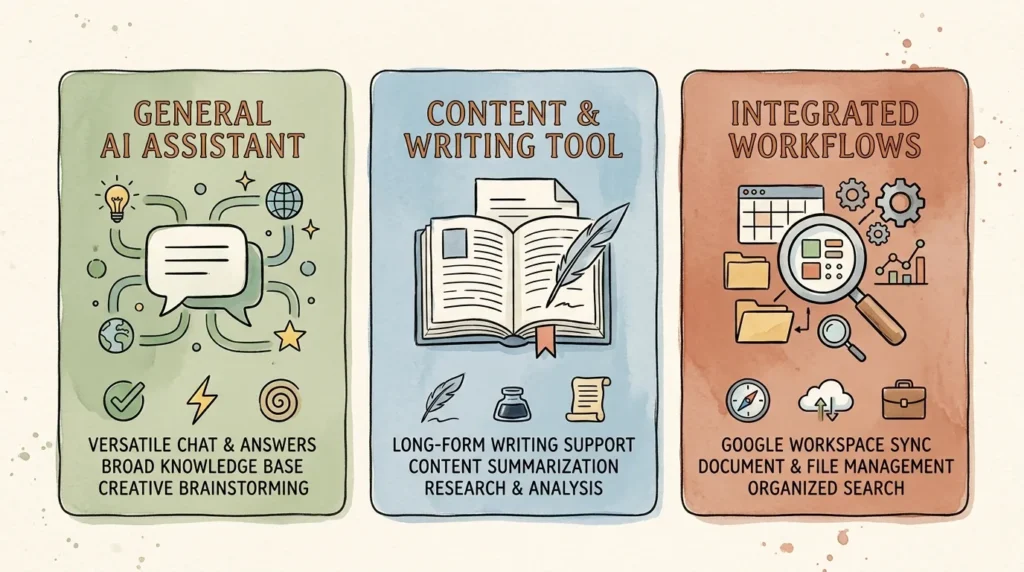
All three are excellent. Here’s the honest comparison.
ChatGPT (OpenAI) is the most well-known and has the broadest ecosystem. The custom GPTs feature, the integration library, and the sheer volume of tutorials available make it the easiest entry point. For most small business owners, ChatGPT is the right place to start.
Claude (Anthropic) tends to write more naturally and handles long documents particularly well. If you’re working with 50+ page contracts, complex research, or content where tone really matters, Claude often produces better output than ChatGPT for the same prompt. Stricter default privacy posture, which matters for client work.
Gemini (Google) integrates deeply with Google Workspace. If your business runs on Gmail, Docs, and Sheets, Gemini’s in-app integrations save real time. Output quality on writing tasks is competitive but slightly behind ChatGPT and Claude in my experience.
My recommendation: start with ChatGPT. After 30 days of regular use, sample Claude for a week to see if its writing better matches your needs. Most small business owners settle on one or two of these and stick. You don’t need all three.
Advanced ChatGPT Tips for Power Users
Building Custom GPTs
On Plus, the GPT Builder lets you create specialized assistants for repeated tasks. Build one for client onboarding emails. Another for blog post outlines. Another for invoice descriptions. Once built, they’re always one click away. Setup takes 15 minutes per GPT and pays off forever.
Code Interpreter for Spreadsheets
On Plus, ChatGPT can analyze CSV files and spreadsheets directly. Drop a customer database, sales report, or expense file in and ask questions in plain English. “What were my top 5 customers by revenue last quarter?” “Which expense category grew fastest?” Genuinely transformative for small business owners who don’t love Excel.
Connecting ChatGPT via Zapier
Zapier integrates ChatGPT into your existing workflows. Trigger a ChatGPT call from any app event: a new lead in your form, a new email in Gmail, a new row in a spreadsheet. The output flows wherever you want. This is where ChatGPT graduates from “tool I open” to “invisible engine running my business.”
Try Zapier
Voice Mode
On the mobile app, voice mode lets you have a real spoken conversation with ChatGPT. Useful for brainstorming during walks, dictating long emails while driving (hands-free), or processing ideas when you’re away from a keyboard.
Common Mistakes Small Businesses Make With ChatGPT
- Trusting the facts without verifying. ChatGPT confidently makes things up. Always fact-check anything specific (statistics, names, dates, quotes).
- Publishing AI content without editing. Audiences can tell. Your voice is your competitive advantage. Don’t outsource it.
- Not giving enough context. Vague prompts produce vague output. Spend the extra 30 seconds on context.
- Treating it as one-and-done. The skill is iteration. The third or fourth refinement is where the gold lives.
- Sharing confidential data without checking privacy. Always understand which tier handles your data and how.
- Mass-producing low-quality content. Google penalties on AI slop are real. Quality over volume, always.
- Ignoring the learning curve. ChatGPT gets better the more you use it. The first two weeks are awkward. Push through.
Frequently Asked Questions About ChatGPT for Small Business
Is ChatGPT free for small businesses?
Yes. The free tier is genuinely usable and many small businesses run on it for months before upgrading. The $20/month Plus tier becomes worth it once you’re using ChatGPT daily and hitting usage caps.
Is ChatGPT safe for confidential business information?
Depends on the tier. Free and Plus tiers send data to OpenAI’s servers and may use it for training (Plus is opt-in). For client work involving sensitive data, use ChatGPT Team or Enterprise, which don’t train on your data by default. For HIPAA, GDPR, or CCPA-regulated data, verify compliance before pasting anything.
Can ChatGPT replace employees in my small business?
It mostly replaces tasks, not people. The owner who used to spend three hours on proposals now spends 30 minutes editing AI drafts and writes more proposals. Same headcount, more output. The framing of “replacing employees” usually overstates the practical reality.
Will Google penalize my site for using ChatGPT to write content?
Google penalizes low-quality AI content, not AI-assisted content per se. Articles drafted with ChatGPT and substantially edited by a human, with original perspectives and accurate information, rank fine. Pure AI output published unedited is what gets penalized.
How accurate is ChatGPT? Can I trust the information?
Treat ChatGPT like a smart but unverified intern. Trust the structure and writing. Always verify specific facts, statistics, names, and dates. Hallucinations (confidently stated wrong information) are real and uncommon but never zero.
Do I need technical skills to use ChatGPT?
No. The interface is a text box. If you can write an email, you have all the skills required. The only thing to learn is how to write good prompts, which takes about an afternoon.
How long does it take to learn ChatGPT effectively?
First useful results: day one. Comfortable daily use: about two weeks. Genuinely skilled (custom prompts, brand voice training, custom GPTs): about a month of regular use. The learning curve is real but short.
Conclusion: Start With One Task, Master It, Then Expand
Here’s the honest truth about how to use ChatGPT for small business work: it’s not going to transform your business overnight. But used consistently and intentionally, it WILL save you 5 to 10 hours per week within your first month.
The biggest mistake I see small business owners make isn’t using ChatGPT wrong. It’s not using it at all, or trying it once, getting a mediocre result, and dismissing it. ChatGPT rewards practice. The more you use it, the better your prompts get, and the better your prompts get, the more valuable it becomes.
If I could give you just one piece of advice from this entire article, it’d be this: pick ONE task you do every week (writing emails, drafting social posts, creating outlines) and commit to using ChatGPT for it every single time, for two weeks straight. No matter how mediocre the results are at first. By the end of those two weeks, you’ll have built the prompt skills and habits to actually get value from this tool.
Don’t try to use ChatGPT for everything at once. Don’t subscribe to Plus before you’ve maxed out the free tier. Don’t expect it to read your mind. Treat it like a smart but new employee: give it context, give it examples, give it feedback, and you’ll get genuinely useful work back.
ChatGPT isn’t going to replace small business owners. But small business owners who learn how to use ChatGPT for small business work well are going to outperform those who don’t. The gap is already opening.
Want practical ChatGPT prompts and tutorials delivered every Friday? Subscribe to the No Fluff AI Tools newsletter. I share real prompts, real workflows, and honest takes on what’s worth your time.
Ready to expand your AI toolkit? Check out my full guide to the Best AI Tools for Small Business in 2026 for hands-on reviews of every tool that pairs well with ChatGPT. And if you want a higher-level overview, How to Use AI for Small Business is a great next read.
Last Updated: May 2026